Course Content
Welcome to Scratch
Students get oriented with the Scratch platform, understand what programming is, and set up their free Scratch account ready for the rest of the course.
0/6
Motion and Looks
Students learn to move sprites around the Stage using Motion blocks, and change how sprites look using Looks blocks — including costumes, speech bubbles, and size changes.
0/7
Loops and Sequences
Students learn to repeat actions efficiently using loop blocks (forever, repeat, repeat until) and understand how the order of blocks in a sequence changes the program's behaviour.
0/7
Conditionals and User Input
Students learn to make programs that react and make decisions using if/else blocks, key-press detection, and mouse input — the foundation of interactive games and apps.
0/8
Variables and Operators
Students learn to store and manipulate data using variables, and combine values with math and logic operators — the tools needed to build scoreboards, timers, and smarter programs.
0/7
Events and Messages
Students learn how Scratch programs react to events (flag click, key press, sprite click) and how sprites communicate with each other using broadcast messages.
0/7
Sound and Music
Students add sound effects and music to their projects using Scratch's Sound editor and blocks, making their games and animations more engaging and polished.
0/8
Lists and Clones
Students learn to store multiple values in lists, and to create multiple copies of a sprite using clones — two powerful tools for building more complex and dynamic projects.
0/7
Final Project and Course Wrap-Up
Students apply every skill learned in the course to build and present a complete Scratch game or interactive project — their portfolio showpiece. The topic closes with a review of key concepts and guidance for continuing to grow as a programmer.
0/6
Programming with Scratch: Build Games & Animations from Zero (Copy 1)

Turning and Pointing

  • point in direction (90) — 90° = right, -90° = left, 0° = up, 180° = down.
  • point towards (mouse-pointer) — sprite always faces your cursor.
  • if on edge, bounce — sprite bounces off Stage walls automatically.
 

Practice Activity

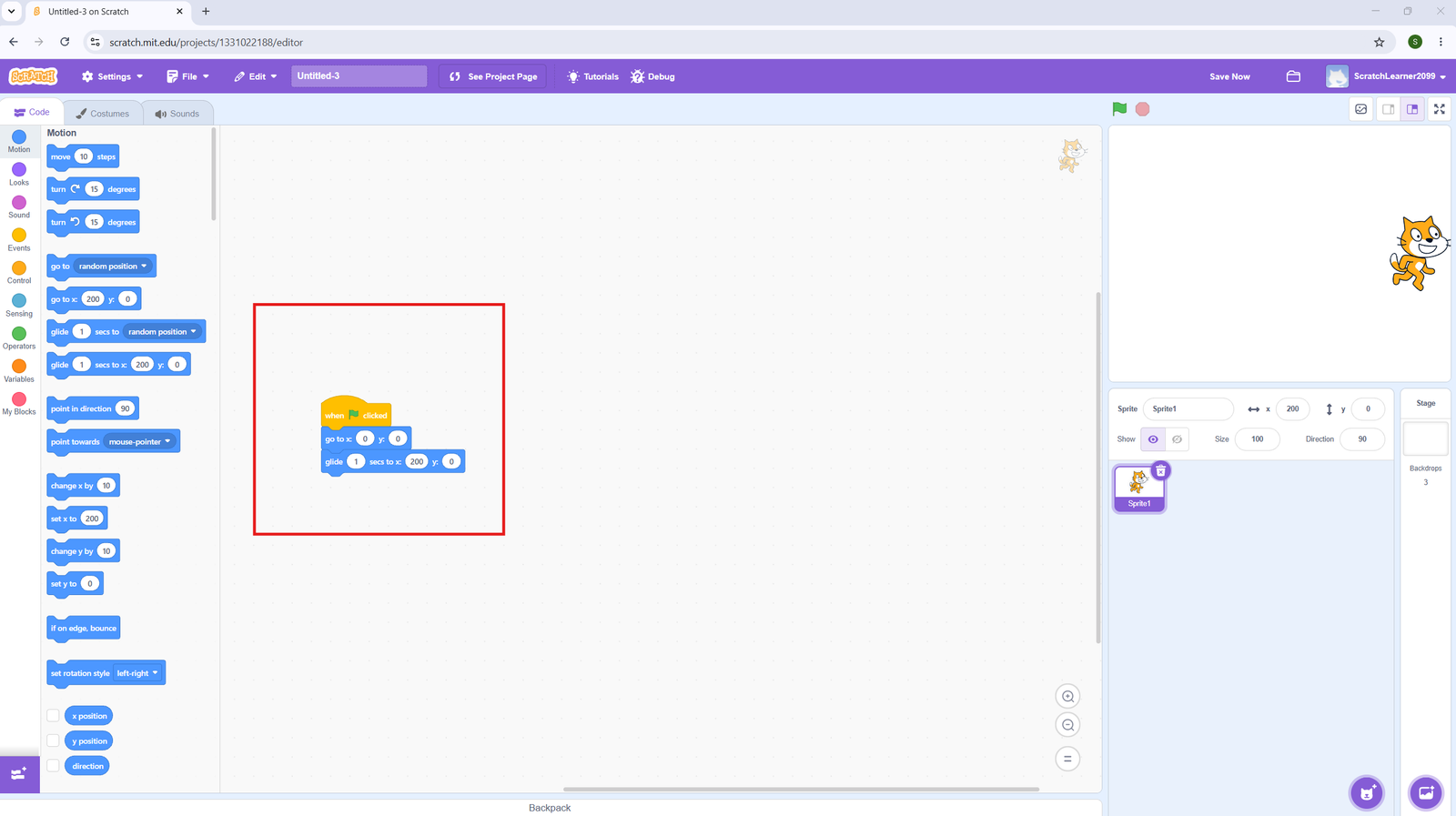
  1. Stack: When 🏁 clicked → forever → move 5 steps → if on edge, bounce.
  2. Run it — the sprite bounces back and forth endlessly!